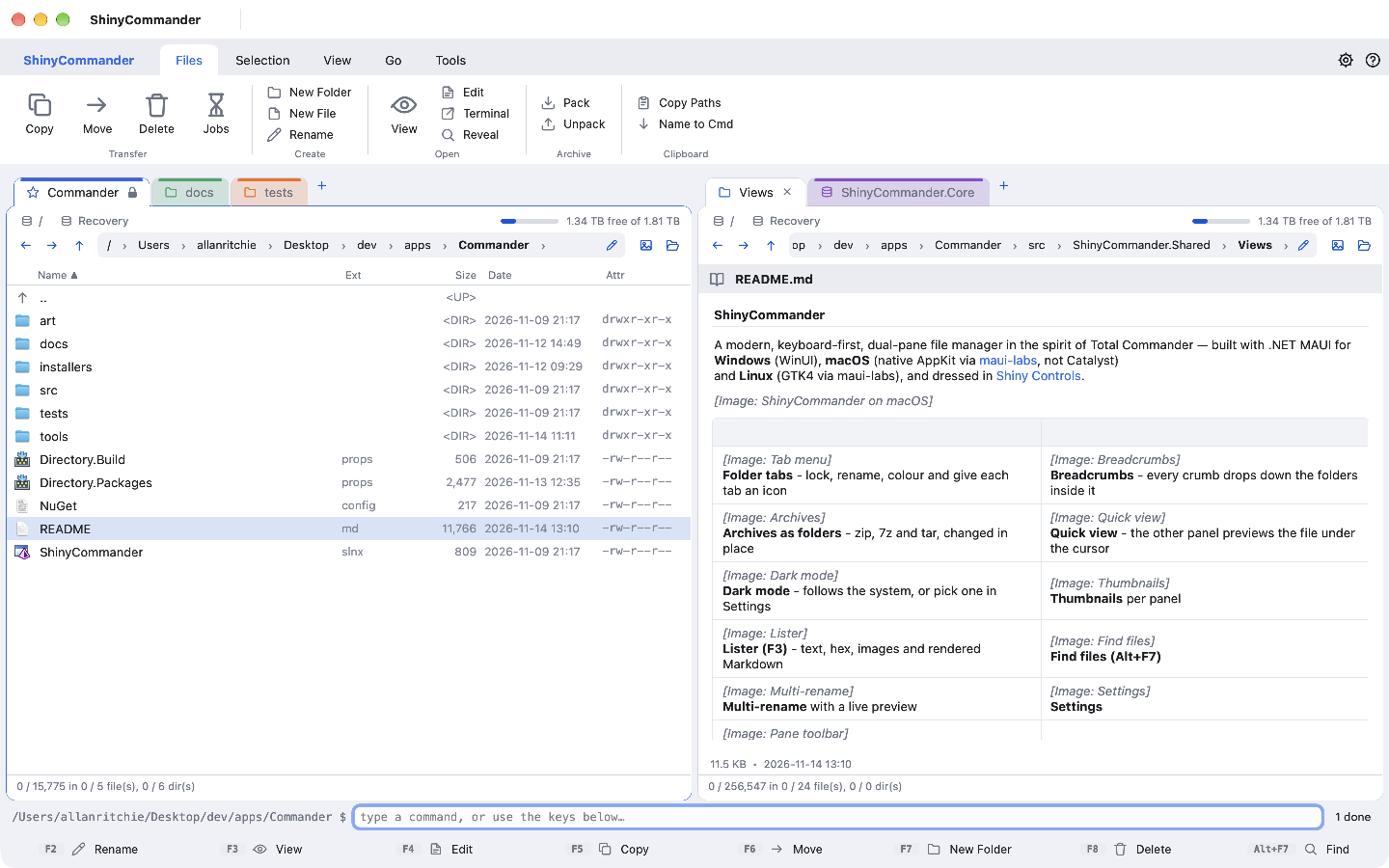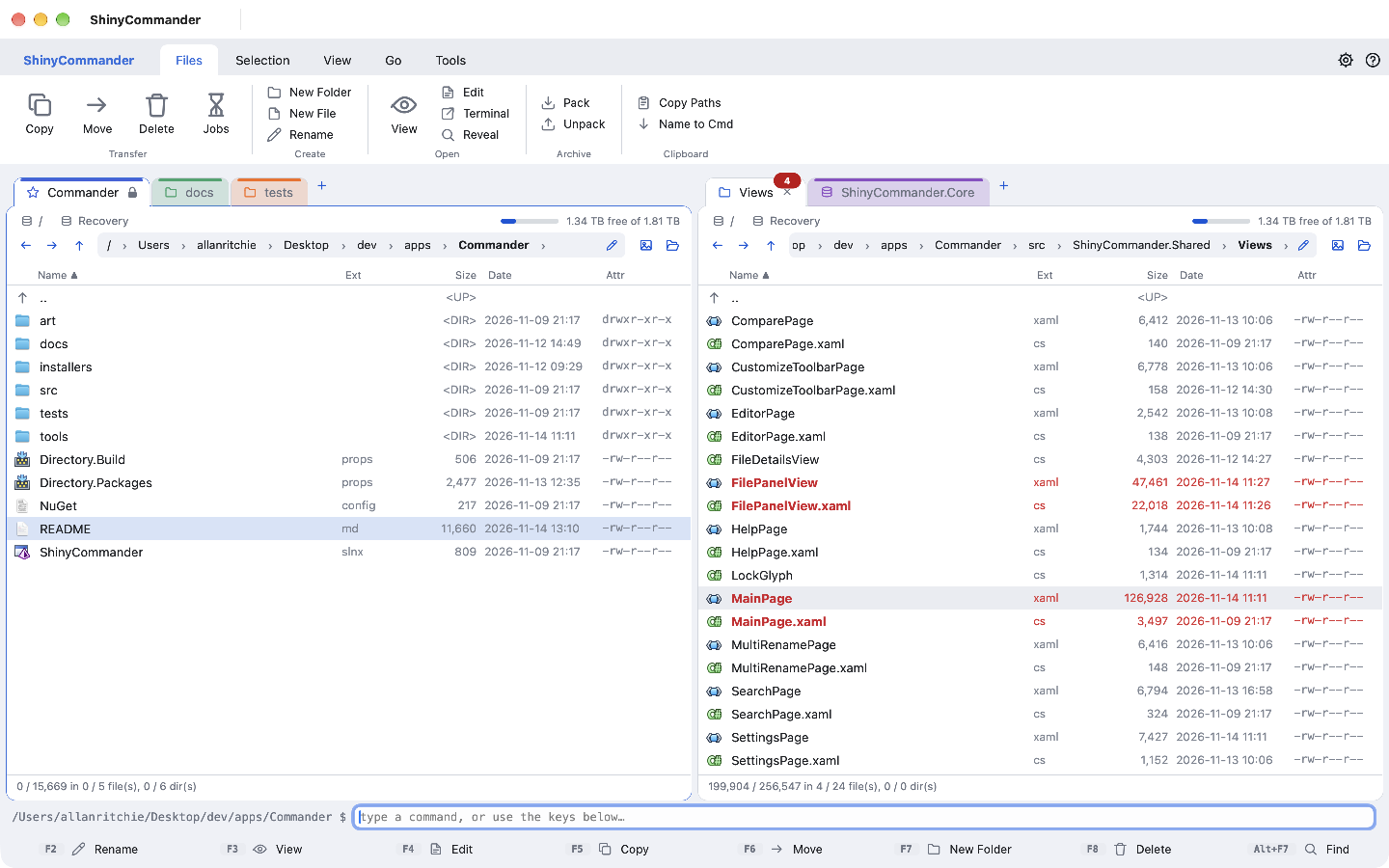
A modern, keyboard-first file manager in the spirit of Total Commander. Lock your favourite folders into
tabs, open zip, 7z and tar archives like folders, work on servers and cloud storage side by side with your
disk, and keep both hands on the keyboard.
Built with .NET MAUI and Shiny Controls - a native app on all three desktops, from one code base.
New
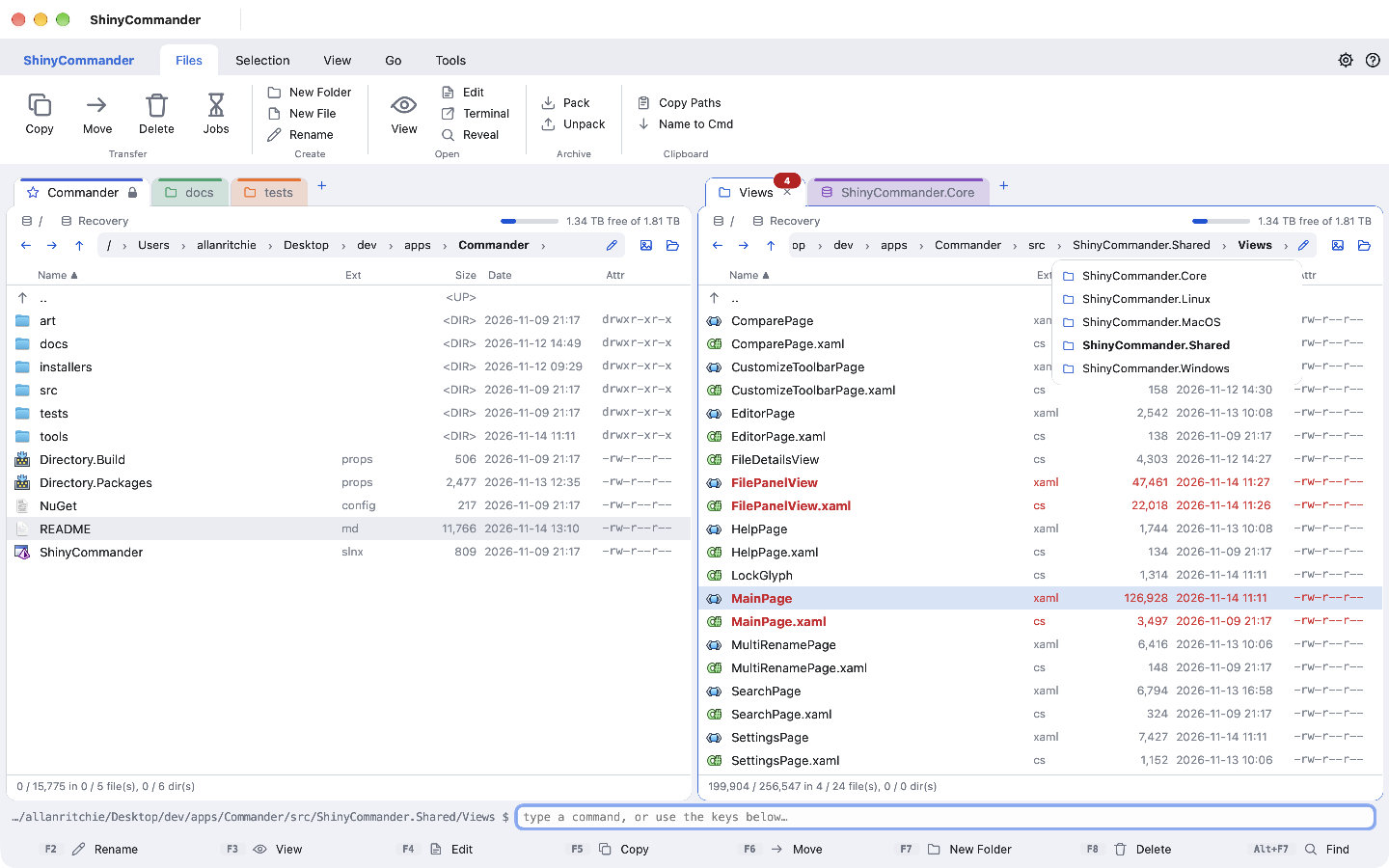
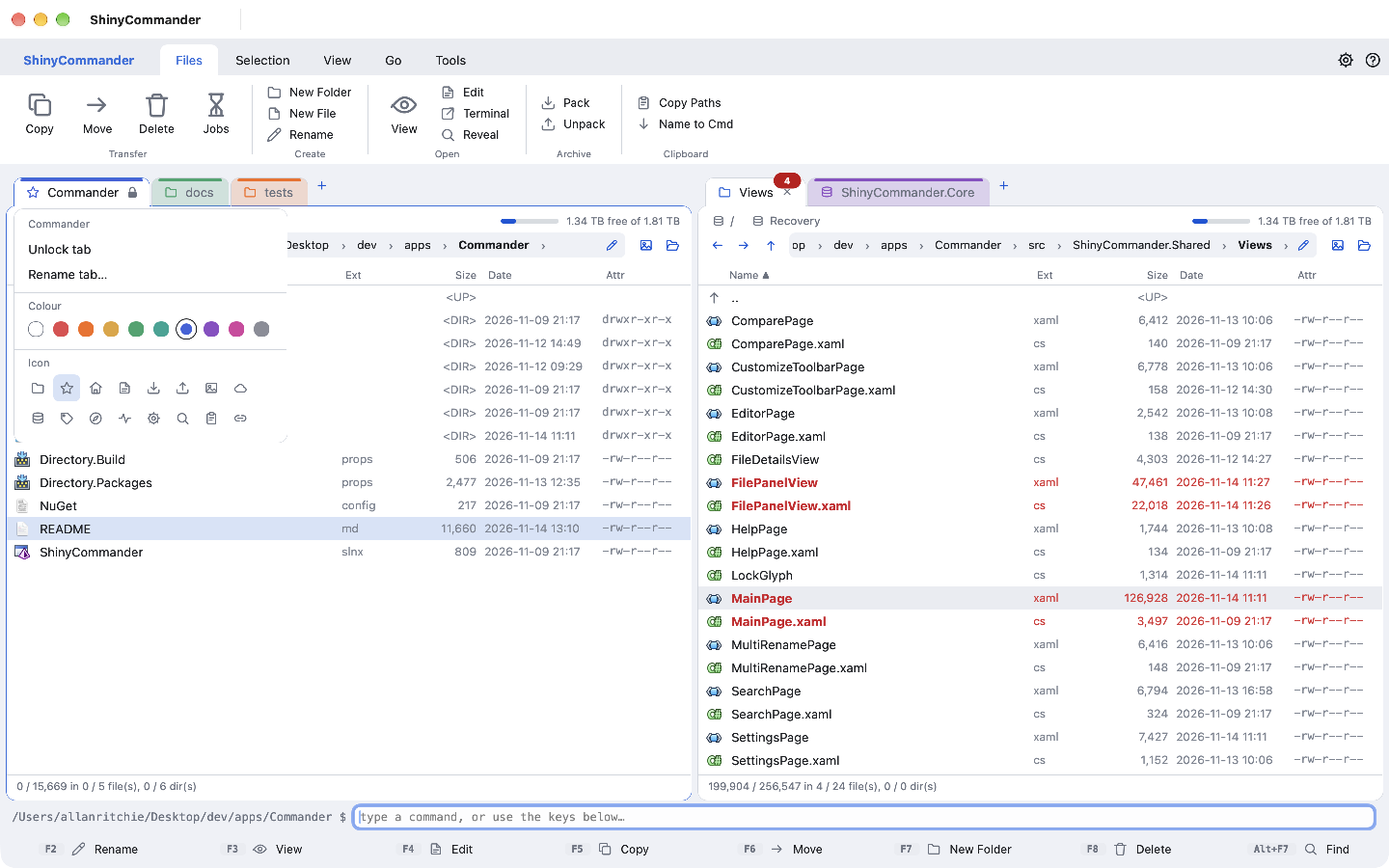
Folder tabs, your way
Tabs sit on top of each panel like real folder tabs, with a badge counting what you've marked. Right-click one to rename it, give it a colour and an icon.
Lock a tab and it stays on its folder - anywhere else opens in a new tab
Home, Desktop, Documents, Downloads and cloud folders start as locked tabs
Tabs, locks, names and colours come back on the next launch
New
Breadcrumbs that drop down
The path is a breadcrumb trail. Click a crumb to jump there, or its chevron to see the folders inside - and pick one without leaving the keyboard row.
The folder you're in is always in view, however deep
Prefer typing? The pencil turns it back into a path box
New
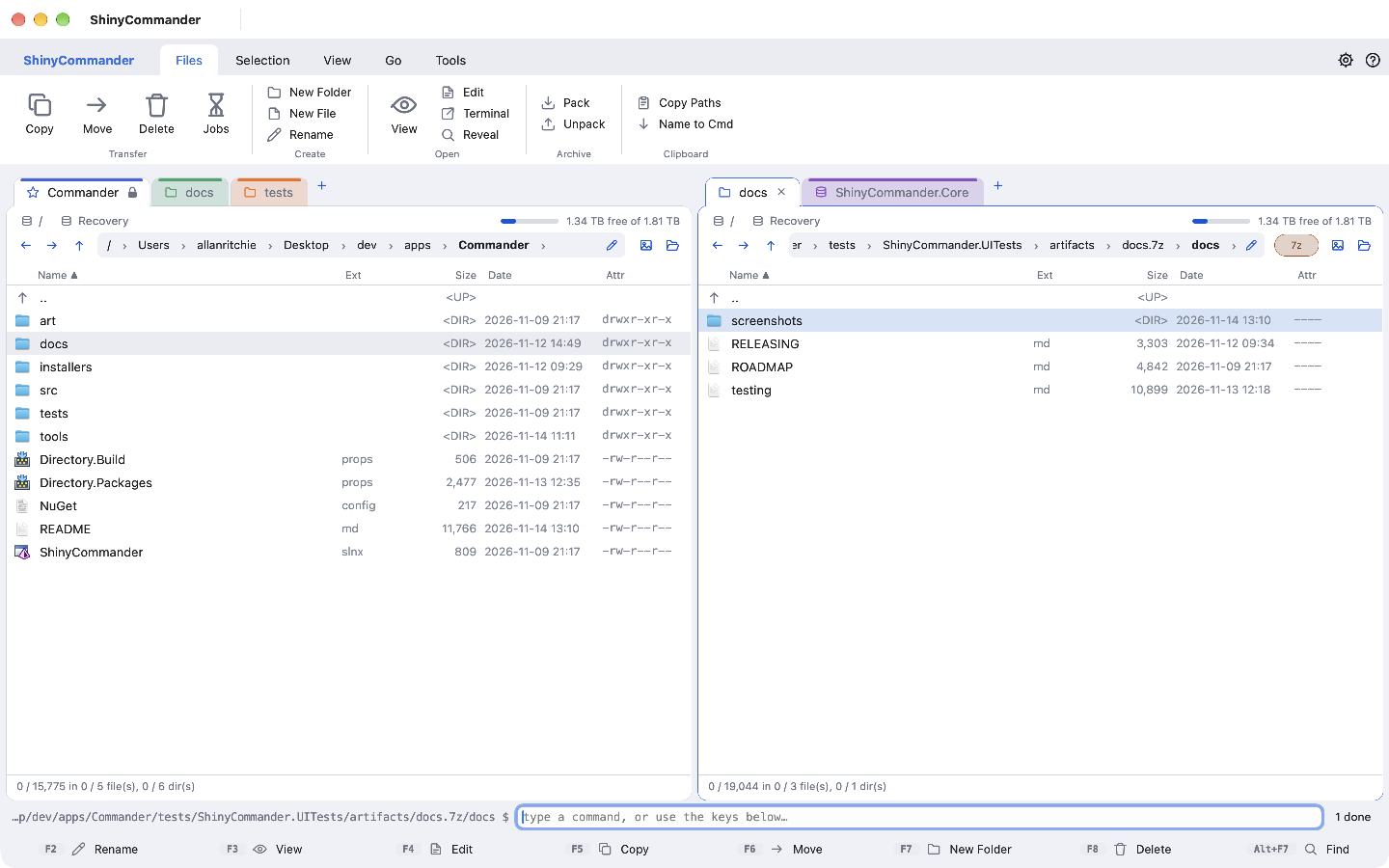
Archives that act like folders
Press Enter on an archive and work inside it like any folder: copy in and out, move, rename, delete, make folders - or press F4 to edit a file and save it straight back in.
zip7ztartar.gztar.bz2tar.zstrartar.xz
read & write browse & copy out
Pack files or whole folders - everything under them - into any writable format
Copy straight from one archive into another
New
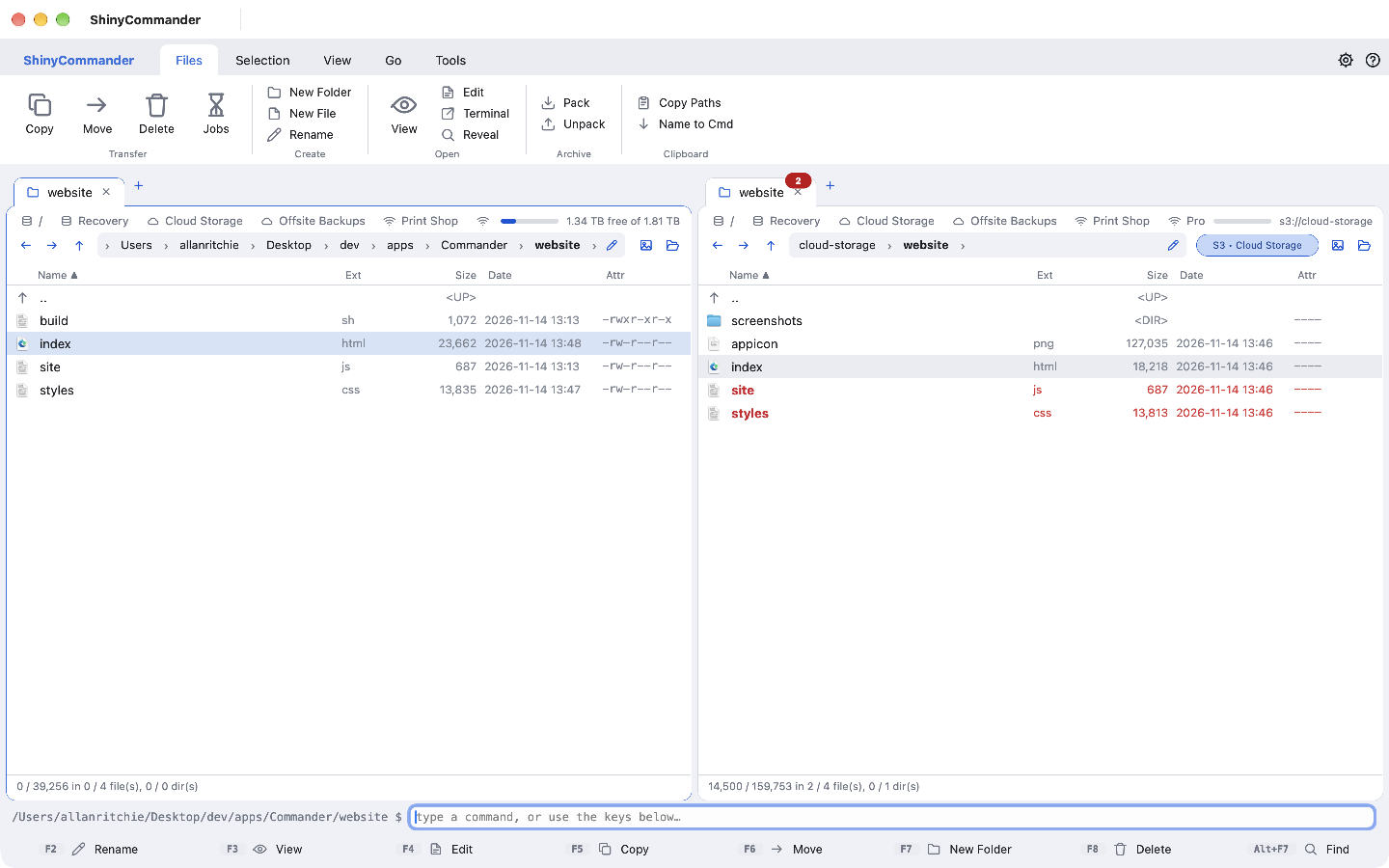
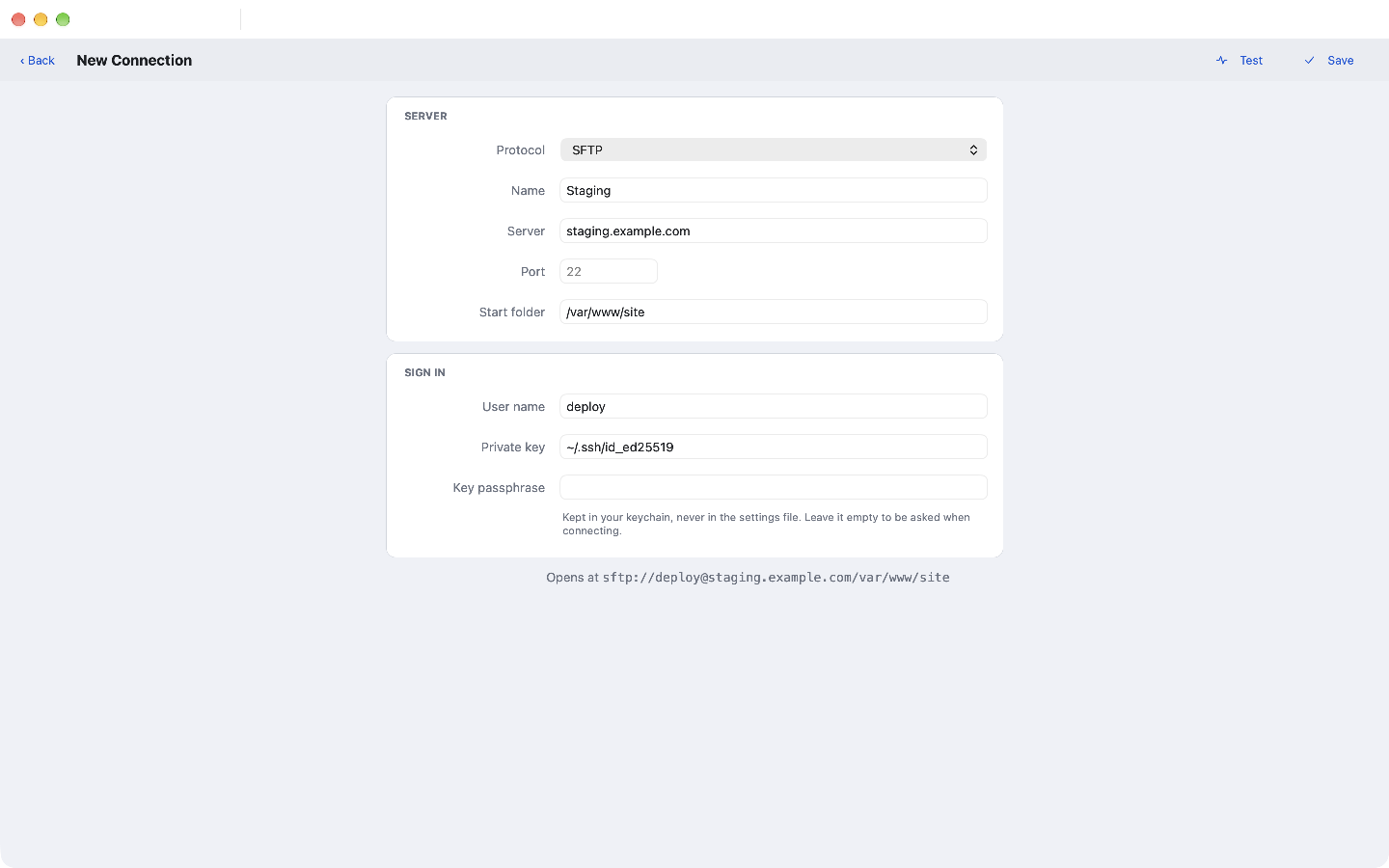
Servers and cloud storage, in a panel
Open an SFTP server, a WebDAV share or an S3 bucket and it works like any folder: copy up and down with F5, move, rename, delete, make folders - or press F4 to edit a file and every save goes straight back to the server.
SFTPFTPFTPSWebDAVAmazon S3Azure BlobSMB shares
Buckets and containers are folders - make one to create it, delete one to remove it
Moves on the same server are instant renames - nothing comes down and goes back up
Saved connections sit in the drive bar beside your disks
New
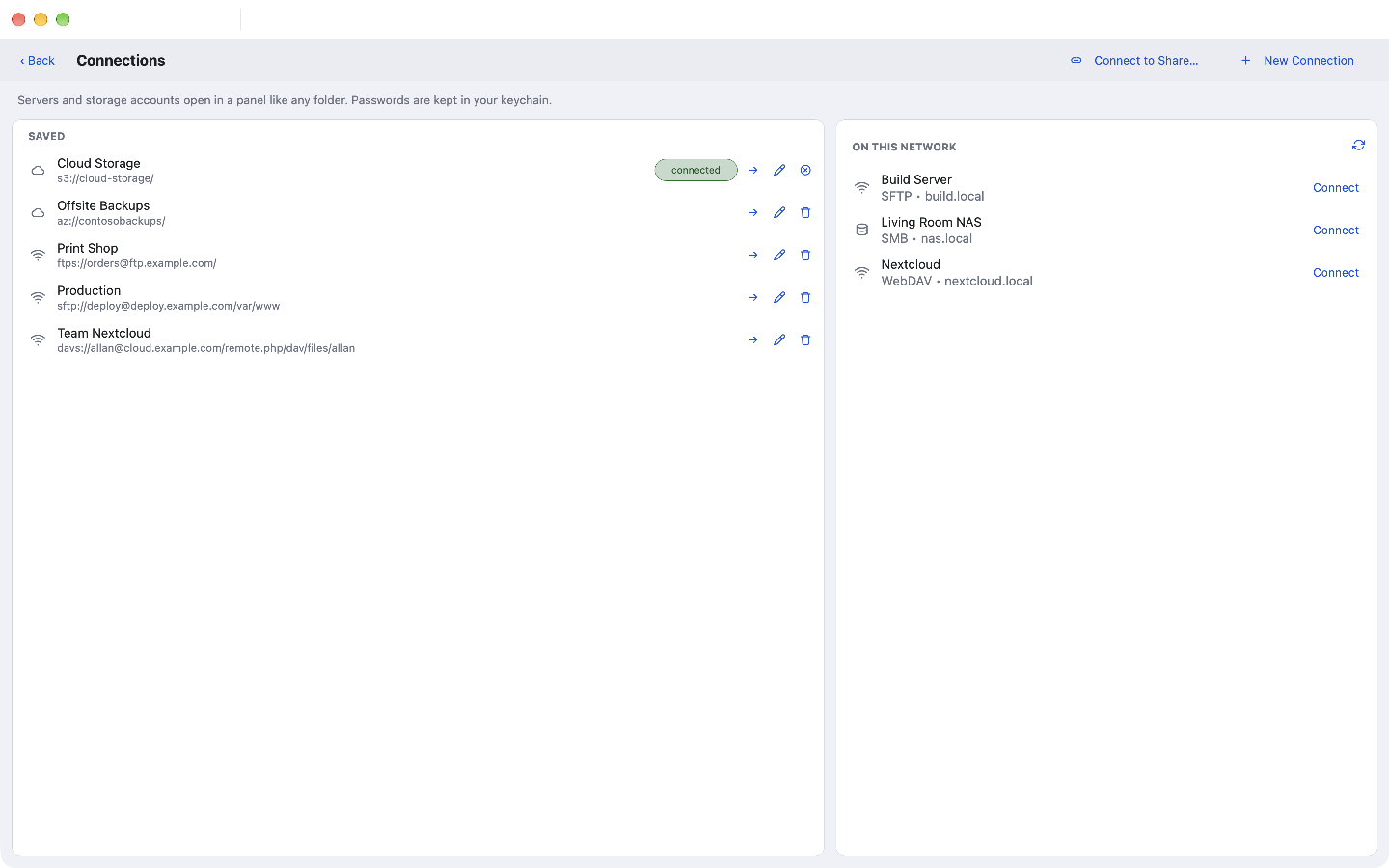
Connect in a keystroke
Press ⌘K - or CtrlK on Windows and Linux - for your saved connections and the file servers announcing themselves on your network.
Network shares found by Bonjour mount the way your OS does it, then open like any drive
Passwords live in your keychain - macOS Keychain, Windows Credential Manager or the Linux Secret Service - never in a settings file
SSH keys, host keys checked on every connect, and a Test button before you save
Quick view, side by side
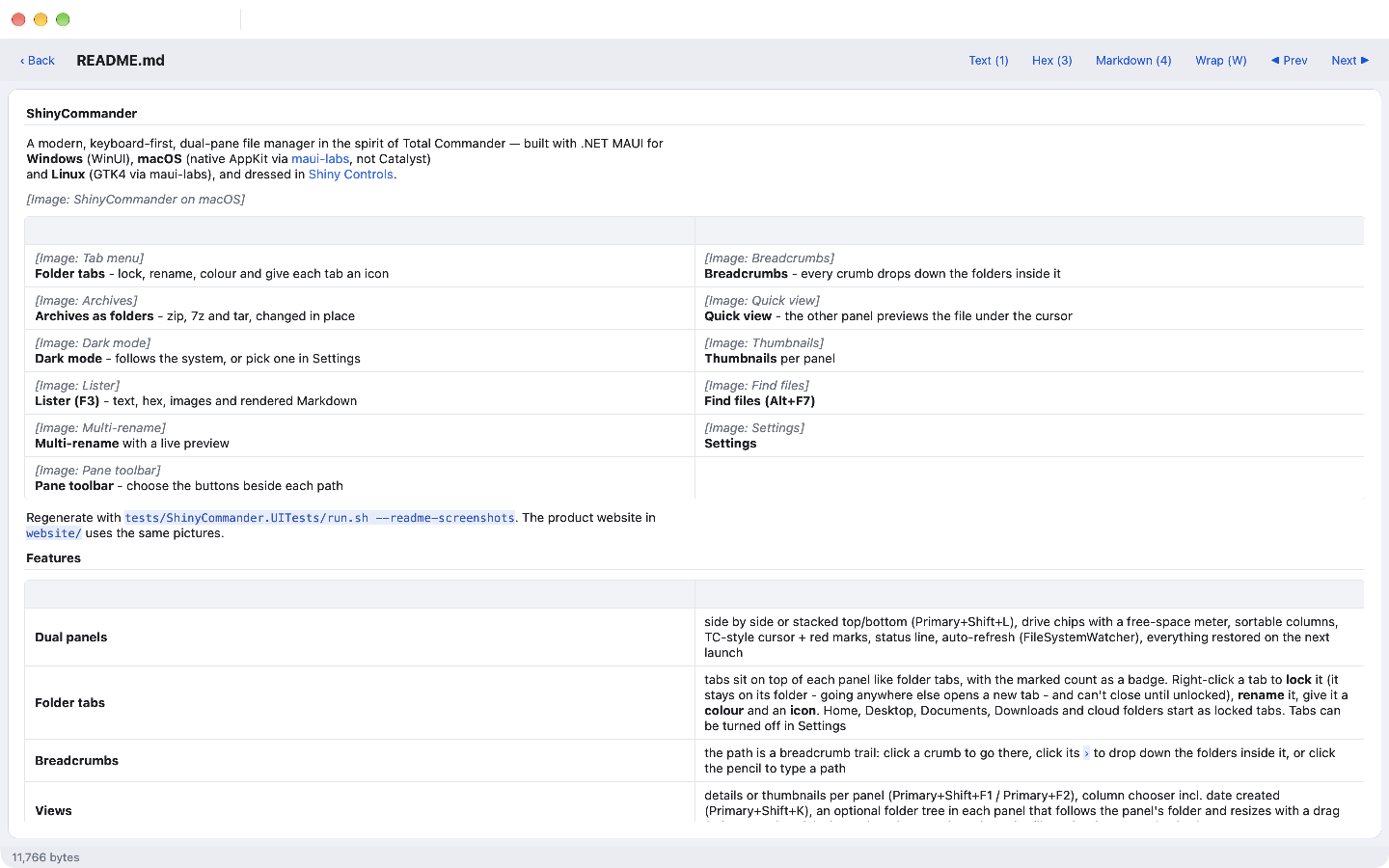
Turn the other panel into a live preview of whatever is under the cursor - text, images and beautifully rendered Markdown, inside archives too.
The lister (F3) adds hex view and walks the folder with N / P
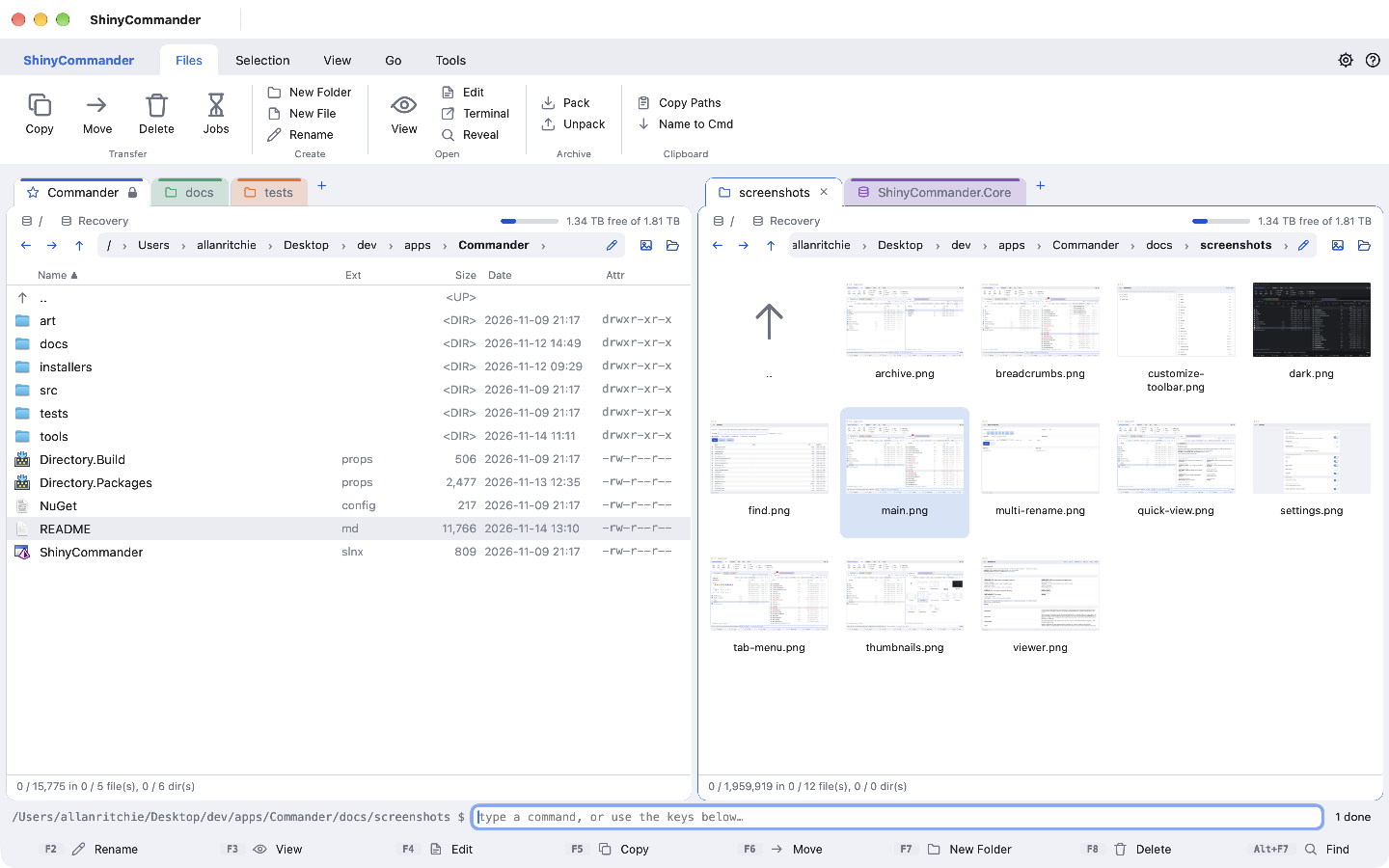
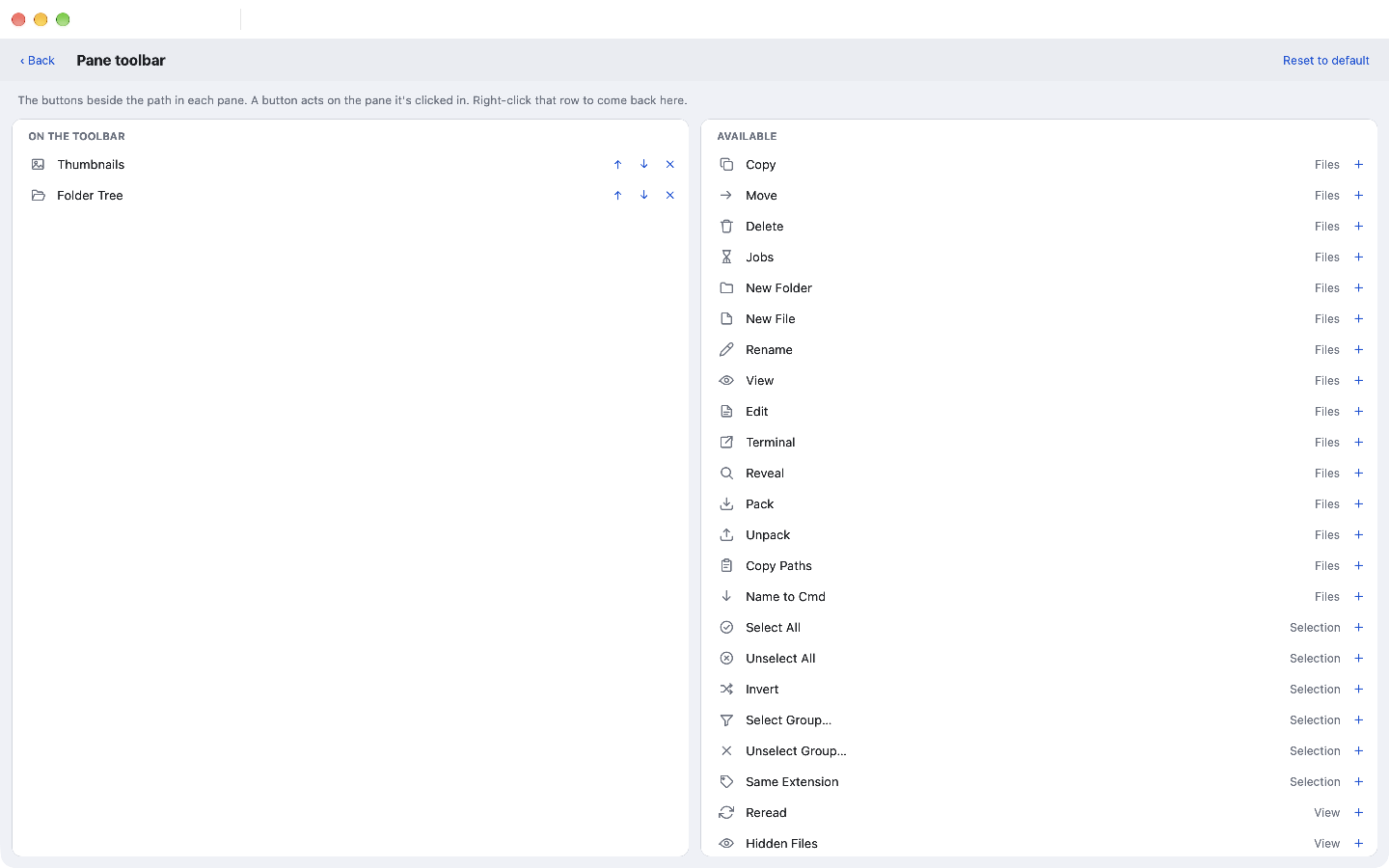
Thumbnails, details and a folder tree, chosen per panel
And so much more
The details that make it yours
Dual panels
Side by side or stacked, with drive chips, a free-space meter, sortable columns and live refresh.
Background jobs
Copy, move, delete, pack and unpack keep running while you work - uploads and downloads too - with progress, Stop and Go To.
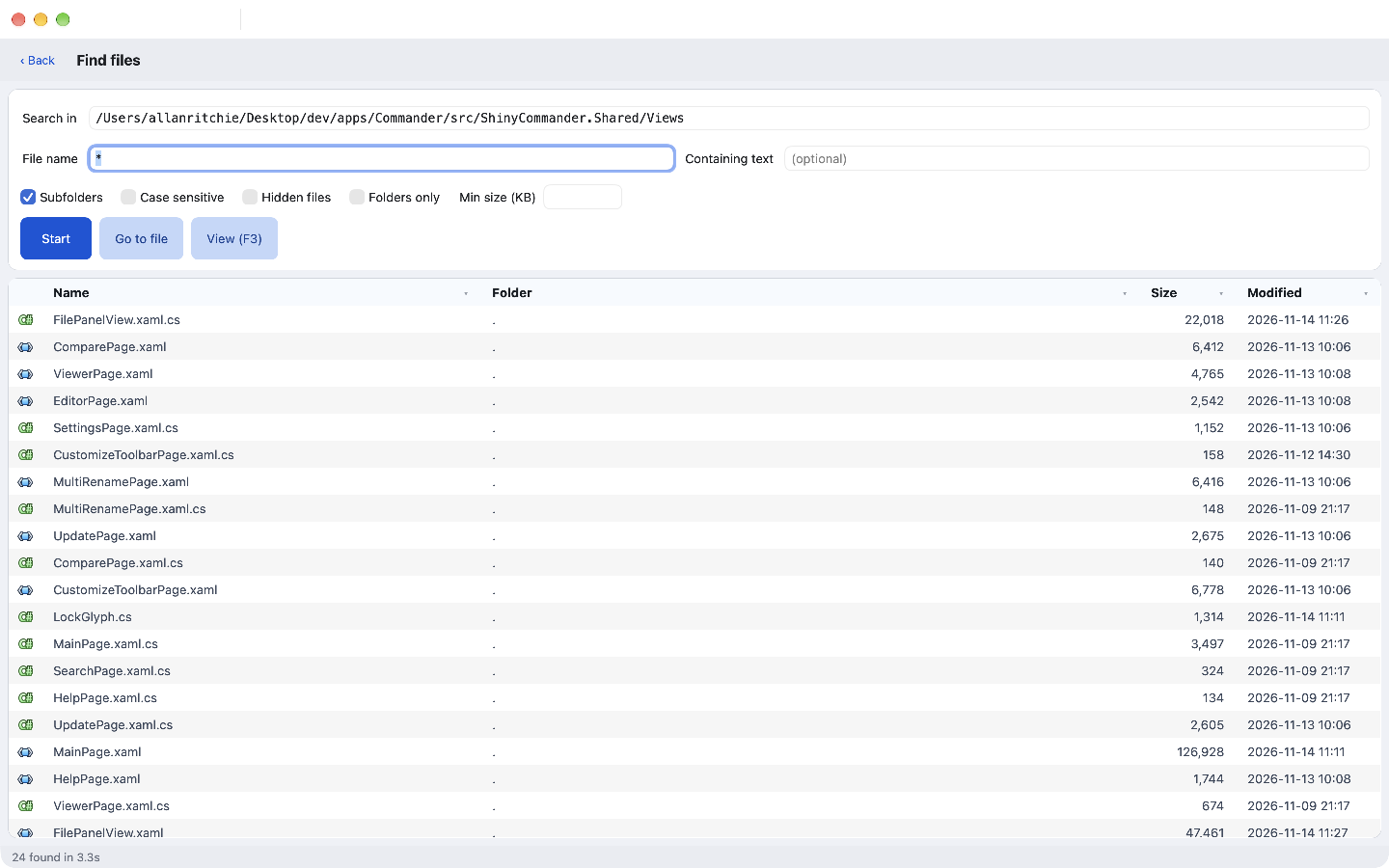
Find files
Total Commander masks like *.cs | bin/, content search, size filters and go-to-file.
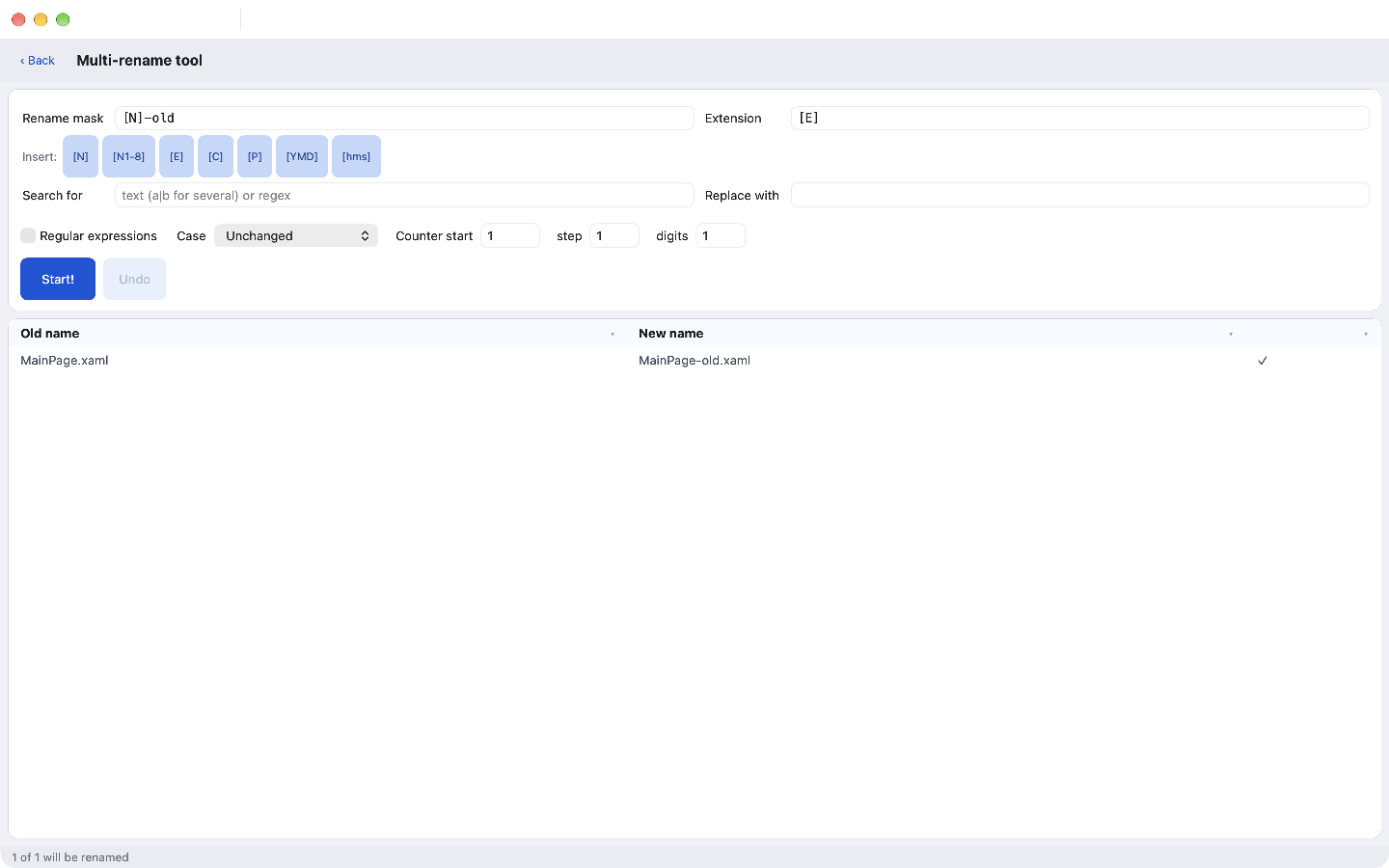
Multi-rename
Placeholders, counters, regex search & replace and a live preview - with undo, even inside archives.
Synchronize folders
Compare trees by date, size or content and copy what's different, in either direction.
Command line
Type anywhere: cd moves the panel, anything else runs in your shell with output in a console.
Built-in editor
Edit with F4 - Markdown gets a live preview - or hand files to your favourite editor.
Your keys stay yours
Server passwords and storage keys go to the OS keychain. Forget one any time from its connection.
Finds your network
NAS boxes, Macs and servers that announce themselves show up ready to connect - SMB, SFTP, WebDAV and FTP.
Edit anywhere
F4 on a file in an archive or on a server edits a copy - and every save is written back where it came from.
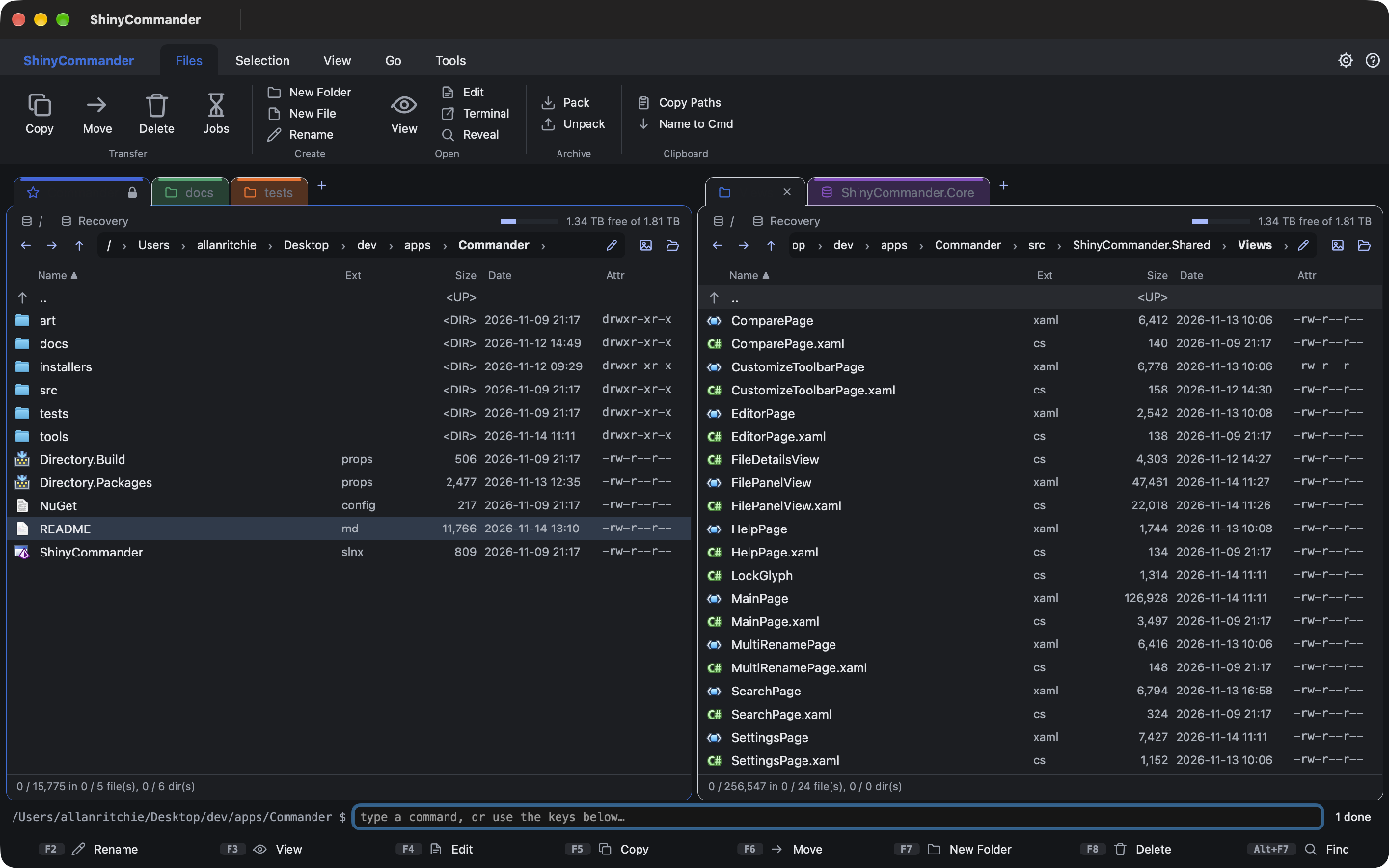
Light & dark
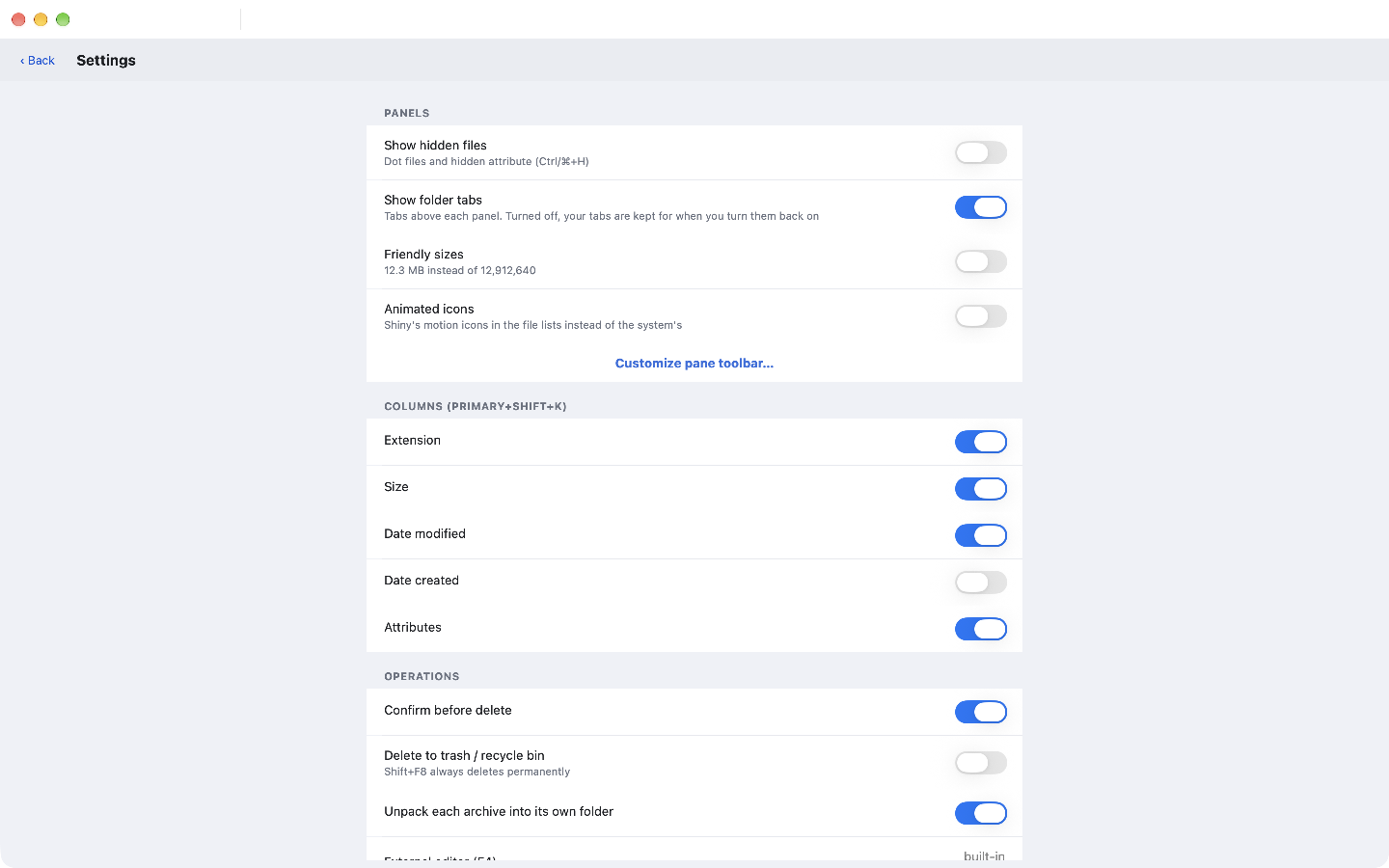
Follows your system, or pick a theme. Every icon and colour is tuned for both.
Speaks your language
English, French and Spanish, following your system or chosen in Settings.
Keyboard first
The keys you already know
The full Total Commander keymap, on every platform. ⌘ on a Mac, Ctrl everywhere else - and F1 shows them all.
F3View
F4Edit
F5Copy
F6Move
F7New folder
F8Delete
AltF5Pack
AltF9Unpack
AltF7Find files
⌘TNew tab
CtrlTabNext tab
⌘MMulti-rename
CtrlQQuick view
⌘JJobs
⌘DHotlist
⌘KConnect
⌘BBranch view
⌘FQuick filter
⌘RReread
TabOther panel
Gallery
Have a look around
Dark modeThumbnailsLister (F3)Find filesMulti-renameSettingsYour own toolbarTab colours & iconsAn S3 bucket in a panelConnections (⌘K)A new connectionArchives as folders